|
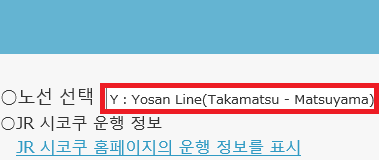
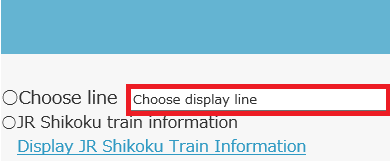
○노선 선택 ① 화면 오른쪽 위의 ‘ ② ‘표시할 노선’을 클릭합니다.
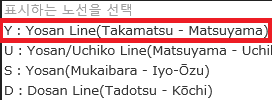
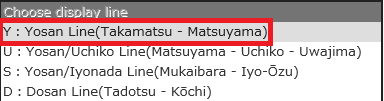
③ 표시하고 싶은 노선을 선택합니다.
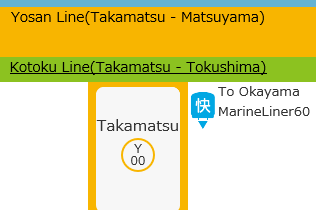
④ 클릭한 노선이 표시됩니다.
○열차 종류 특급열차: 쾌속열차: 보통열차: 화물열차: 임시열차: 회송열차:
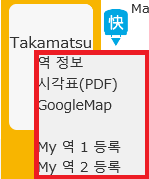
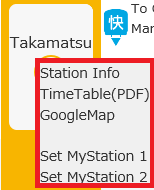
○각종 정보 표시 ・역명 클릭에 관한 표시 역을 클릭하면 아래와 같은 팝업이 표시됩니다.
역 정보: JR 시코쿠의 역 정보 페이지를 표시합니다. ※JR 시코쿠의 홈페이지상에 존재하는 경우에만 표시 시각표(PDF): 역의 시각표를 표시합니다.
GoogleMap: GoogleMap을 표시합니다. My 역 등록: 클릭한 역을 My 역으로 등록합니다. 등록한 역은 다음에 사이트를 열면 자동으로 표시됩니다. 또, ‘메뉴’ 의 ‘My 역 이동’을 클릭하면 등록한 역으로 이동합니다.
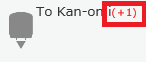
·열차에 관한 표시 지연 표시 열차 옆에 ‘(+○○)’이라고 붉은 글씨로 표시됩니다. 표시 예 : ※일부 지연 시분이 표시되지 않는 노선 및 구간이 있습니다.
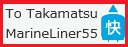
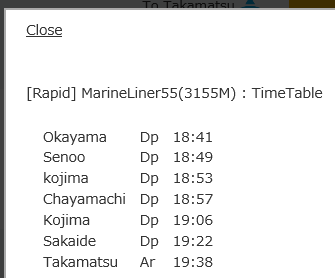
·클릭한 열차의 시각표 표시 ①대상 열차를 클릭합니다.
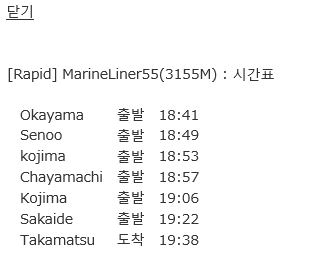
②열차의 시각표가 표시됩니다.
※시각표는 검은색 테두리를 클릭하면 닫을 수 있습니다.
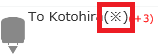
·토요일·휴일 행선지가 다른 열차 토요일·휴일 간에 열차의 행선지가 다른 열차에는 ‘
또, 시각표에도 경고가 표시됩니다.
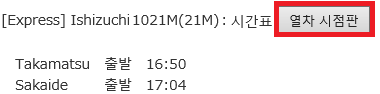
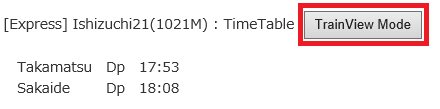
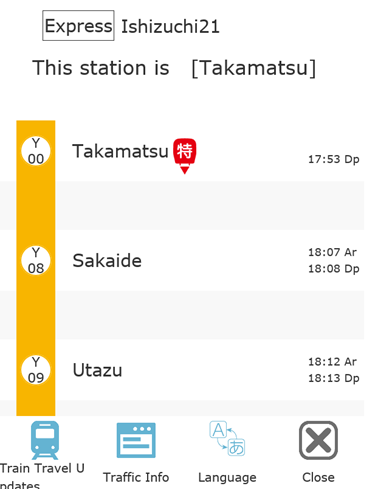
○열차 시점판 표시 열차 시점판 표시에서는 열차가 출발한 시간과 역을 통과한 시간으로 표시가 갱신되어 실제로 열차에 승차하고 있는 듯한 분위기를 즐길 수 있습니다. (※특급열차와 마린 라이너만 대응) ①시각표의 ‘열차 시점판’을 클릭합니다.
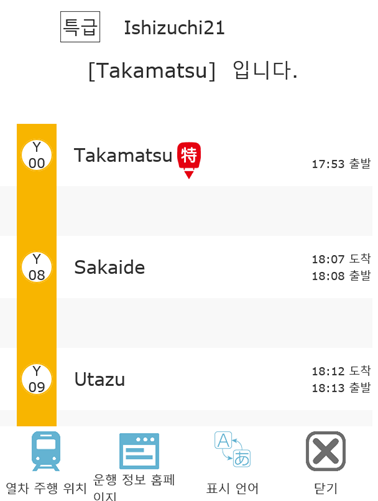
②열차 시점판이 표시됩니다.
|
○Display Line ①Click「 ②Click "Choose display line".
③Select the line you want to display.
④The line you clicked will be displayed.
○Train type limited express train: rapid train
: local train
: freight train
: special
train : service train
:
○Display information ・Display about station name click When you click on a station, the following pop-up will appear.
Station Info:The station information page of JR Shikoku is displayed. ※Display only if it exists on the JR Shikoku website TimeTable(PDF): Display the timetable of the station.
GoogleMap:Display Google Map. Set MyStation:The clicked station is registered as My station. The station you registered will be displayed automatically the next time the site is displayed. Also, if you click "Move My Station" in "Menu", you will move to the registered station.
・Display about train Display of delay It will be displayed in red as "(+○○)" next to the train. Display
example: ※ There is line ward where part, late time do not appear. Timetable display of the clicked train
・Timetable display of the clicked train ①Click the target train.
②The train timetable is displayed.
※ Timetable can be closed by clicking the black frame.
・Saturday, holiday destination wrong train "
Also, a warning will be displayed on the timetable.
○TrainView Mode In the TrainView Mode display, the display is updated at the timing when the train departs or passes through the station, and you can feel the atmosphere of actually getting on the train. (※Only for limited express trains and MarineLiners.) ①Click “TrainView Mode” on the timetable.
②The TrainView Mode is displayed.
|
 ’(